1、下载相关需要的软件

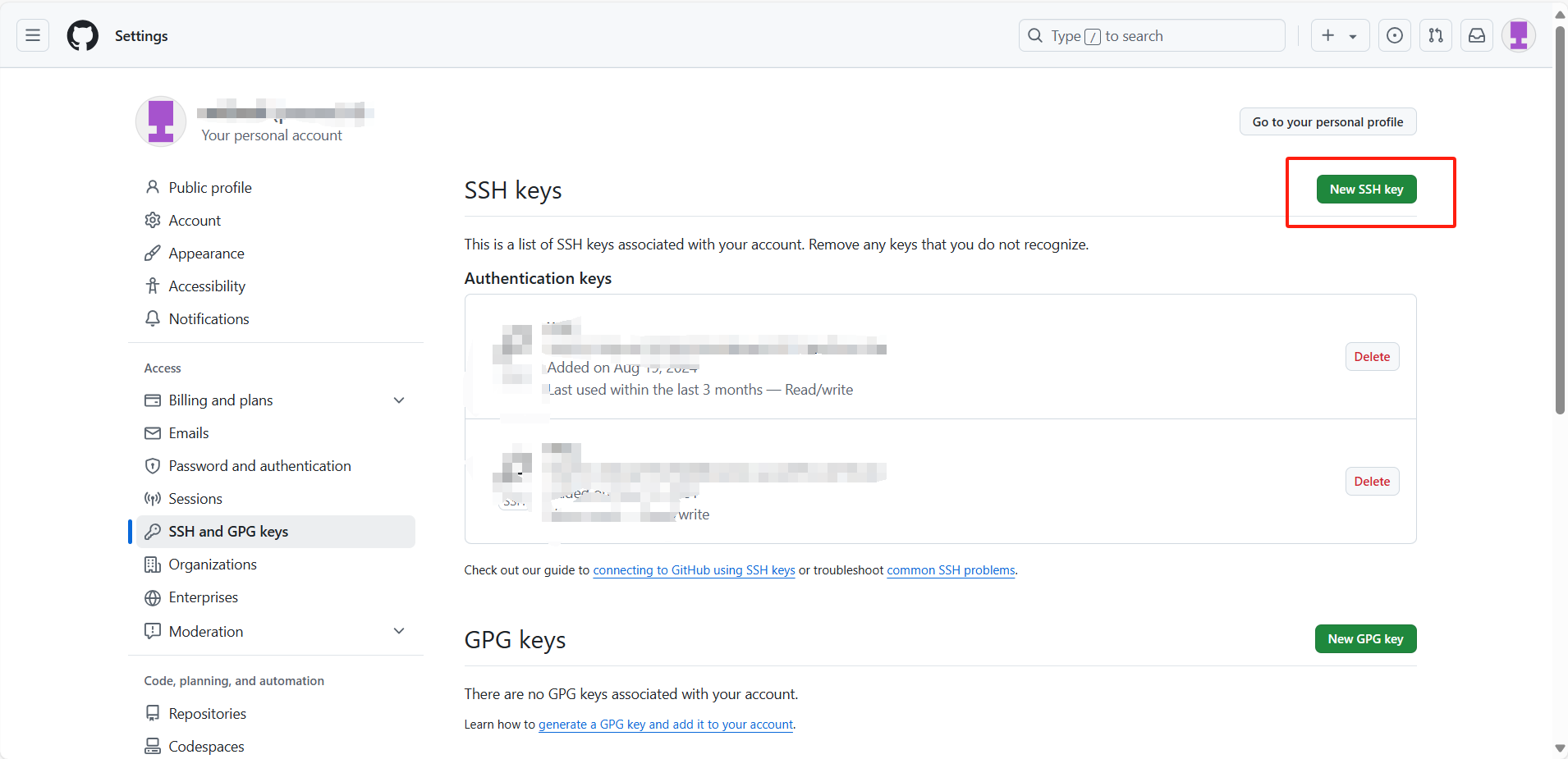
在下载之前,先注册一个Github账号

Node.js下载

VS Code

Git

2、绑定github仓库

2.1 创建SSH私钥

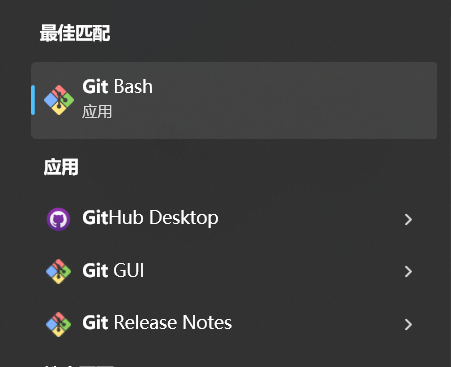
  • 打开Git Bash(在下载完Git后,点开开始页面即可看到下面的三个图标)
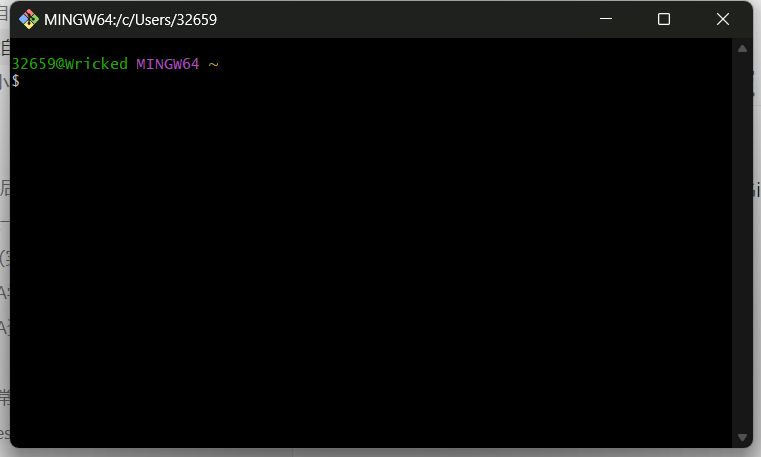
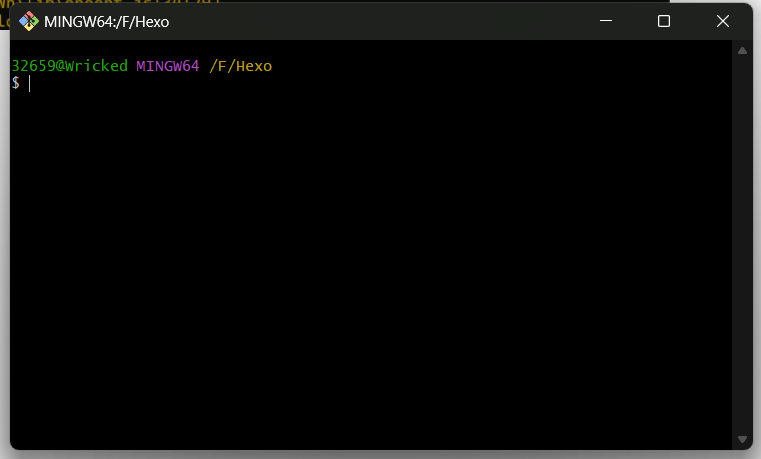
  • 打开Git Bash后,可看到下面的界面

    image-20241112124734678
  • 输入一下代码绑定你的Github用户以及邮箱(我之前操作过了,我就不操作了)

    1
    2
    git config --global user.name "你的Github用户名"
    git config --global user.email "你的邮箱"
  • 然后使用一下代码创建SSH私钥

    1
    2
    ssh-keygen -t rsa -C "你的邮箱"  ## 输入自己的邮箱
    # 然后一直按enter健即可
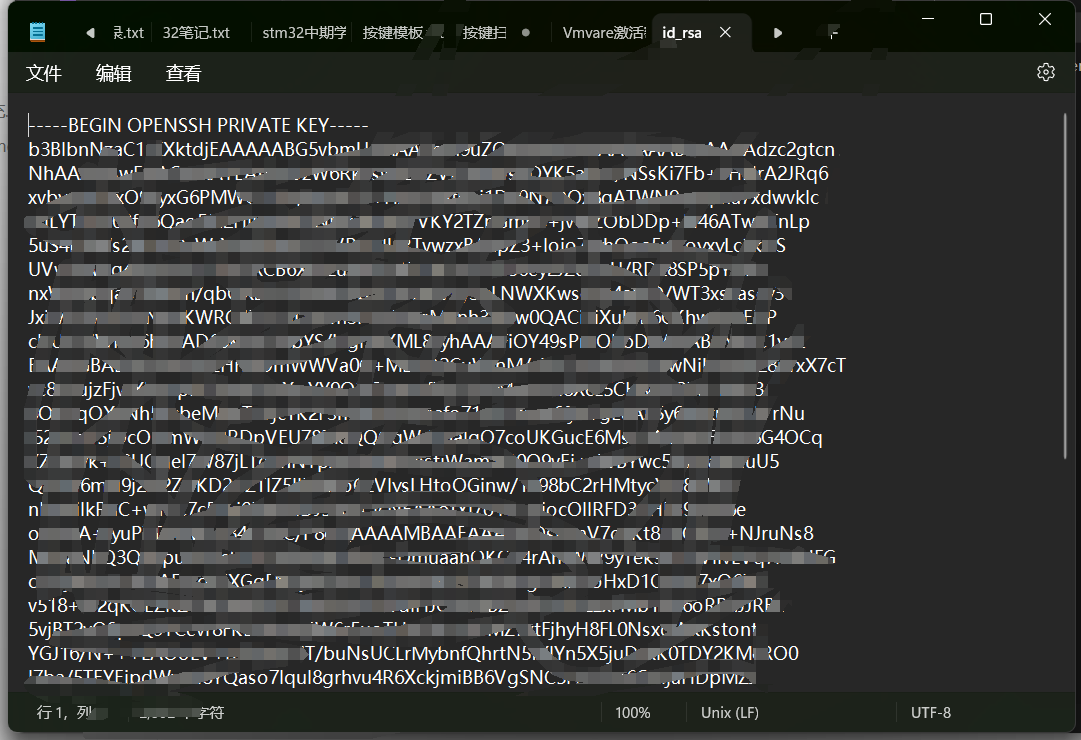
  • 完成后可以到本地查看产生的SSH密钥 一般在C:\用户\你的用户名\.ssh

    image-20241112125204978

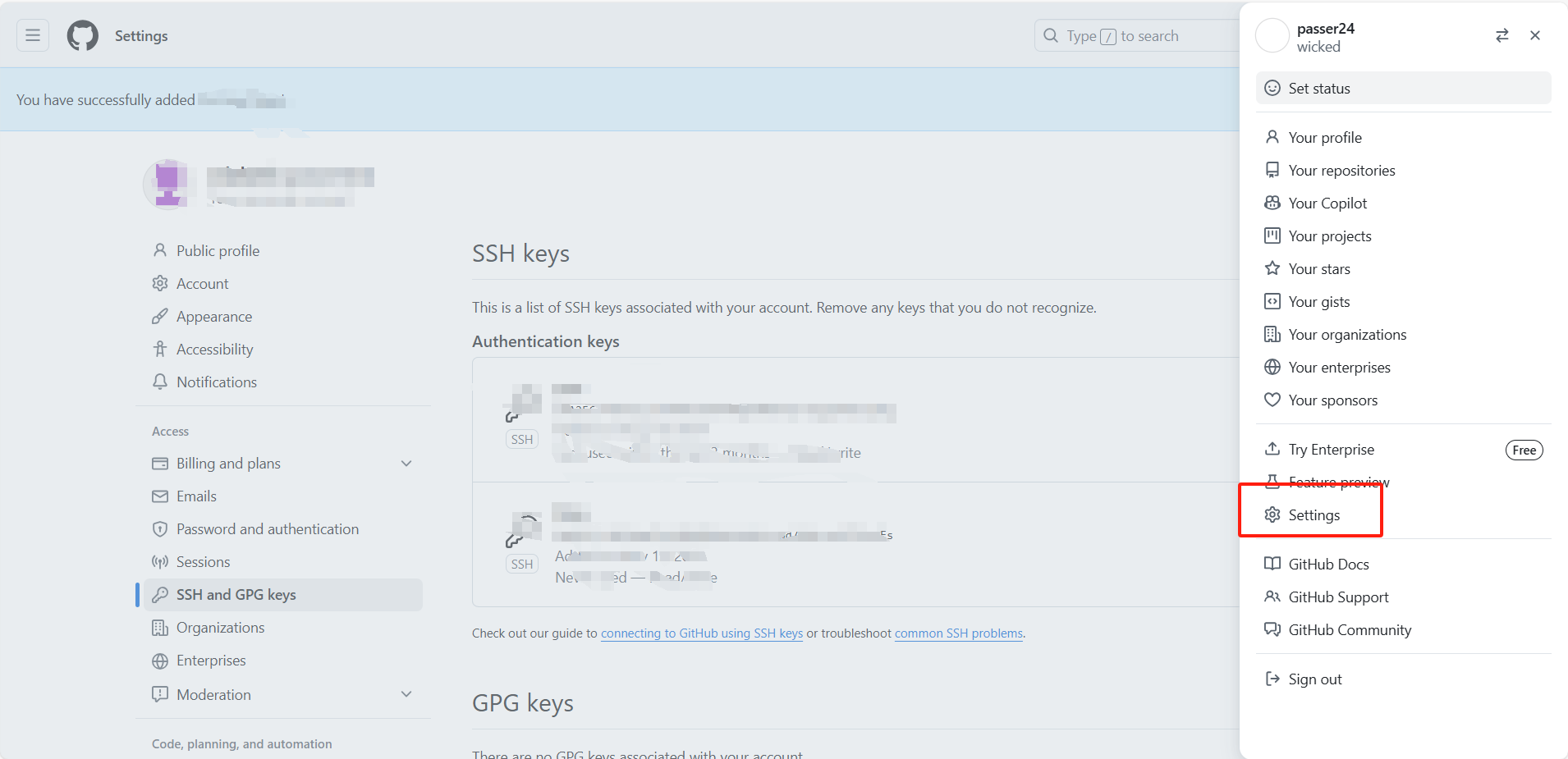
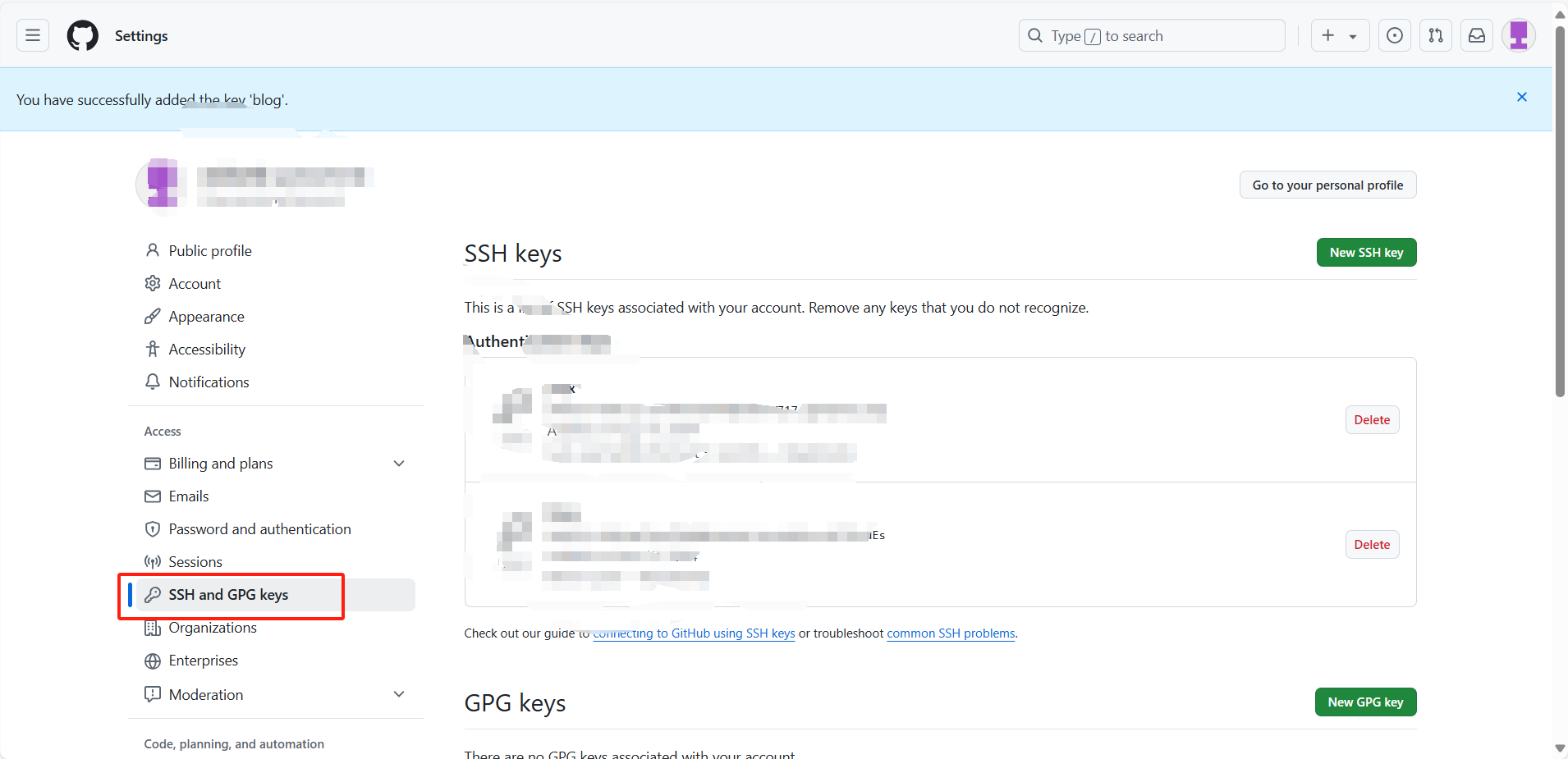
2.2 添加私钥

ERROR: 在添加私钥时,如出现Key is invalid. You must supply a key in OpenSSH public key format报错则使用id_rsa.pub内的私钥进行绑定

2.3 创建连接Github仓库

2.3.1 在.ssh文件夹中创建一个config文件
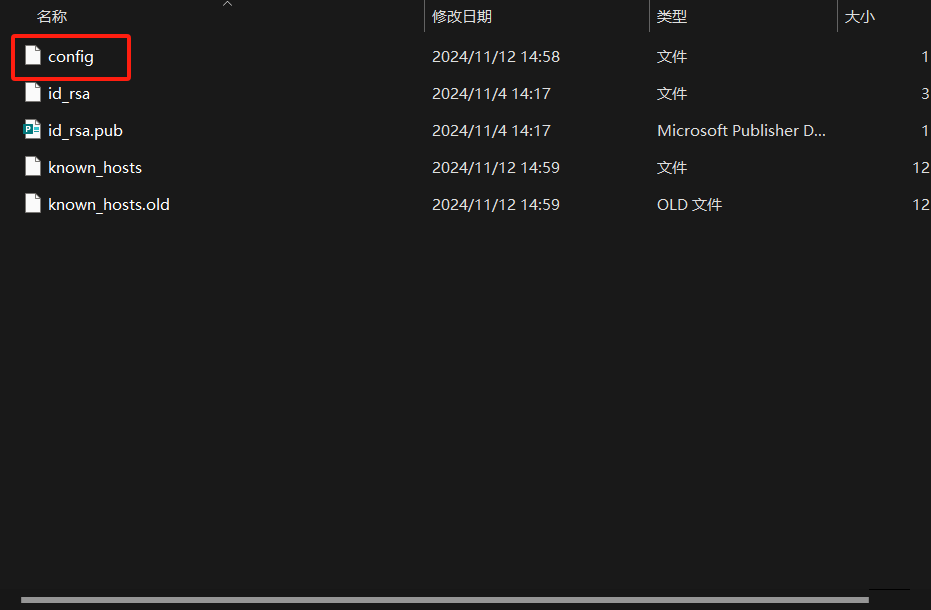
2.3.2 在config文件中输入一下内容

1
2
3
4
5
6
Host github.com
HostName ssh.github.com # 这是最重要的部分
User git
Port 443
PreferredAuthentications publickey
IdentityFile ~/.ssh/id_rsa

2.3.3 测试来连接ssh库

1
2
3
4
5
6
7
8
9
10
ssh git@github.com

The authenticity of host '[ssh.github.com]:443 ([20.205.243.160]:443)' can't be established.
ED25519 key fingerprint is SHA256:+DiY3wvvV6TuJJhbpZisF/zLDA0zPMSvHdkr4UvCOqU.
This key is not known by any other names.
Are you sure you want to continue connecting (yes/no/[fingerprint])? yes
Warning: Permanently added '[ssh.github.com]:443' (ED25519) to the list of known hosts.
PTY allocation request failed on channel 0
Hi passer24! You've successfully authenticated, but GitHub does not provide shell access.
Connection to ssh.github.com closed. //显示 HI `你的用户名`!即为连接成功

3、安装hexo

3.1 更改nmp镜像源

1
2
`进入cmd`
npm config set registry https://registry.npmmirror.com

注意此处的镜像源有些博客是使用的带有taobao的网址,需要使用这个新的网址,否则会出现证书的报错

3.2 创建一个文件夹 用于hexo初始化

使用nmp安装hexo

1
nmp install -g hexo-cli

3.3 初始化hexo

1
2
3
4
5
hexo init
` 初始化完成后会出现一下几行提示`
INFO Cloning hexo-starter https://github.com/hexojs/hexo-starter.git
INFO Install dependencies
INFO Start blogging with Hexo!

但是这一步通常需要科学上网工具,并且使用了科学上网工具也不一定能解决整个问题

这里有一个办法可以有效地解决这个问题 并且不需要科学上网工具

3.3.1 出现ERROR
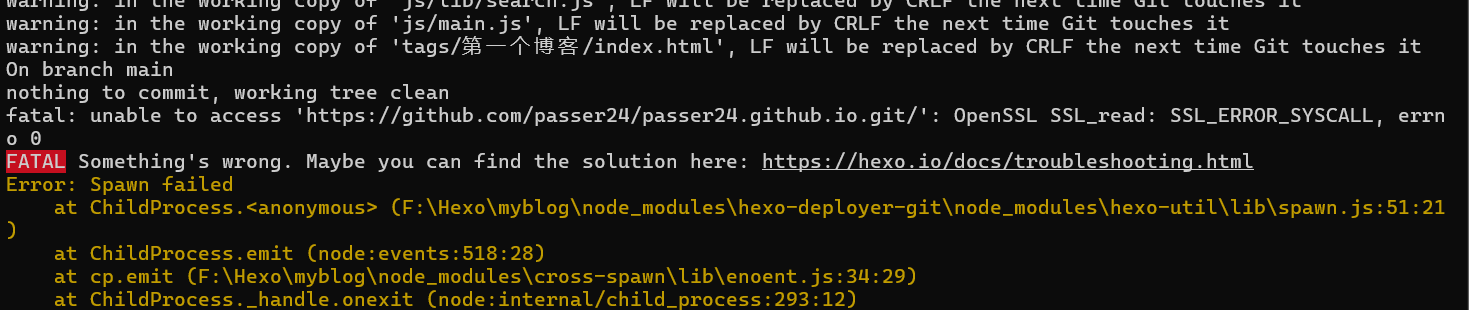
  • 打开Git Bash

    image-20241113105846932
  • 进入你设置好的博客的文件夹

    运行以下代码 npx hexo init myblog
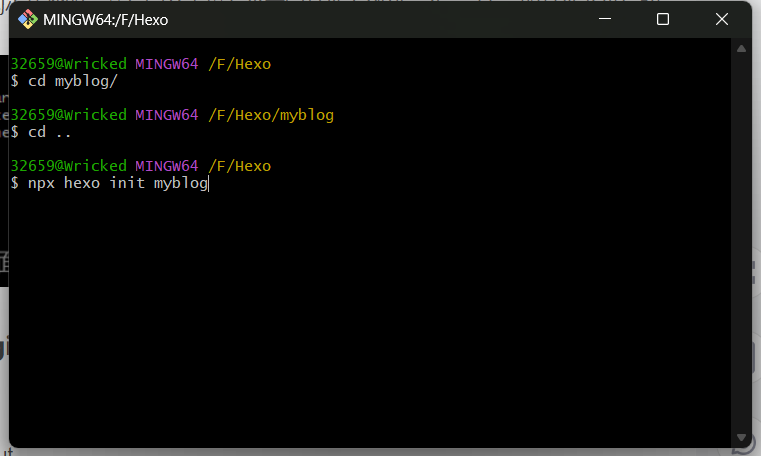
    image-20241113110036243

注意文件必须是空的不然会报错 运行完以上代码 出现 start blogging with hexo! 就成功了

3.4 部署到github上

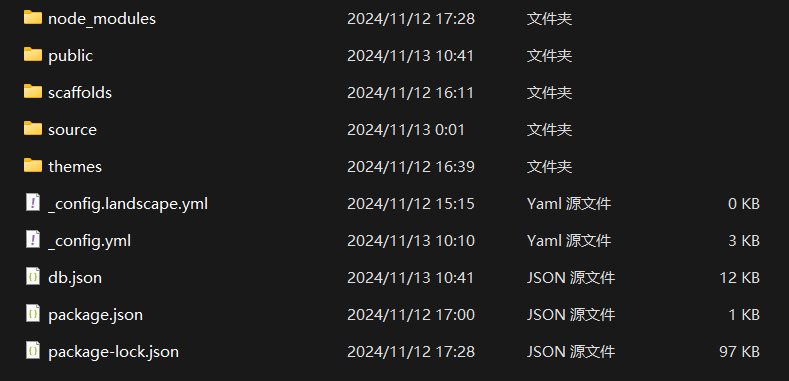
  • 刚刚初始化玩的文件夹内容如下图所示:

    image-20241113112130508
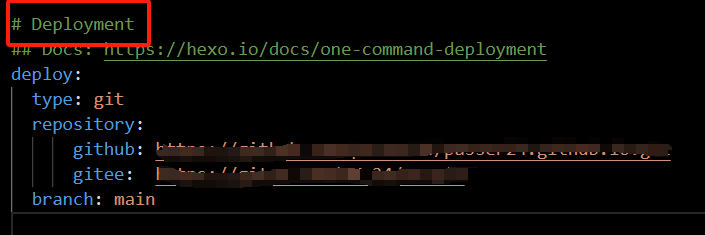
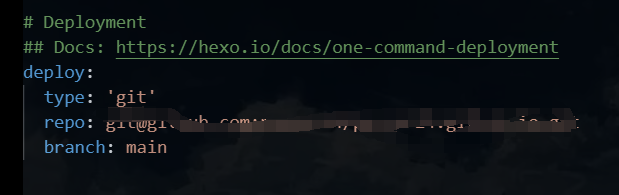
  • 打开_config.yml文件,找到Deployment

    image-20241113112319180
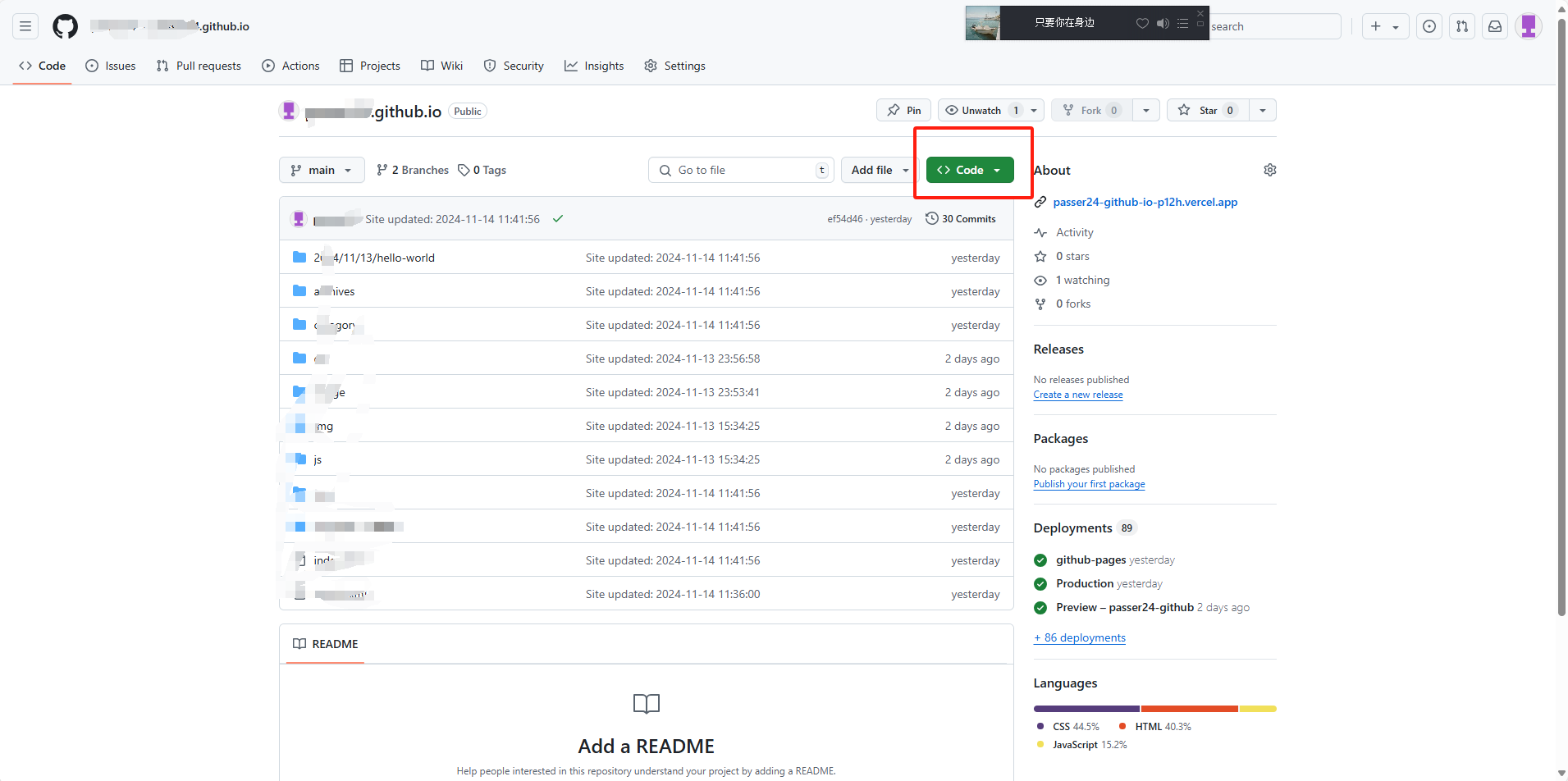
  • 在GitHub中创建一个仓库s,复制仓房的ssh链接

命名必须是你的用户名字.github.io
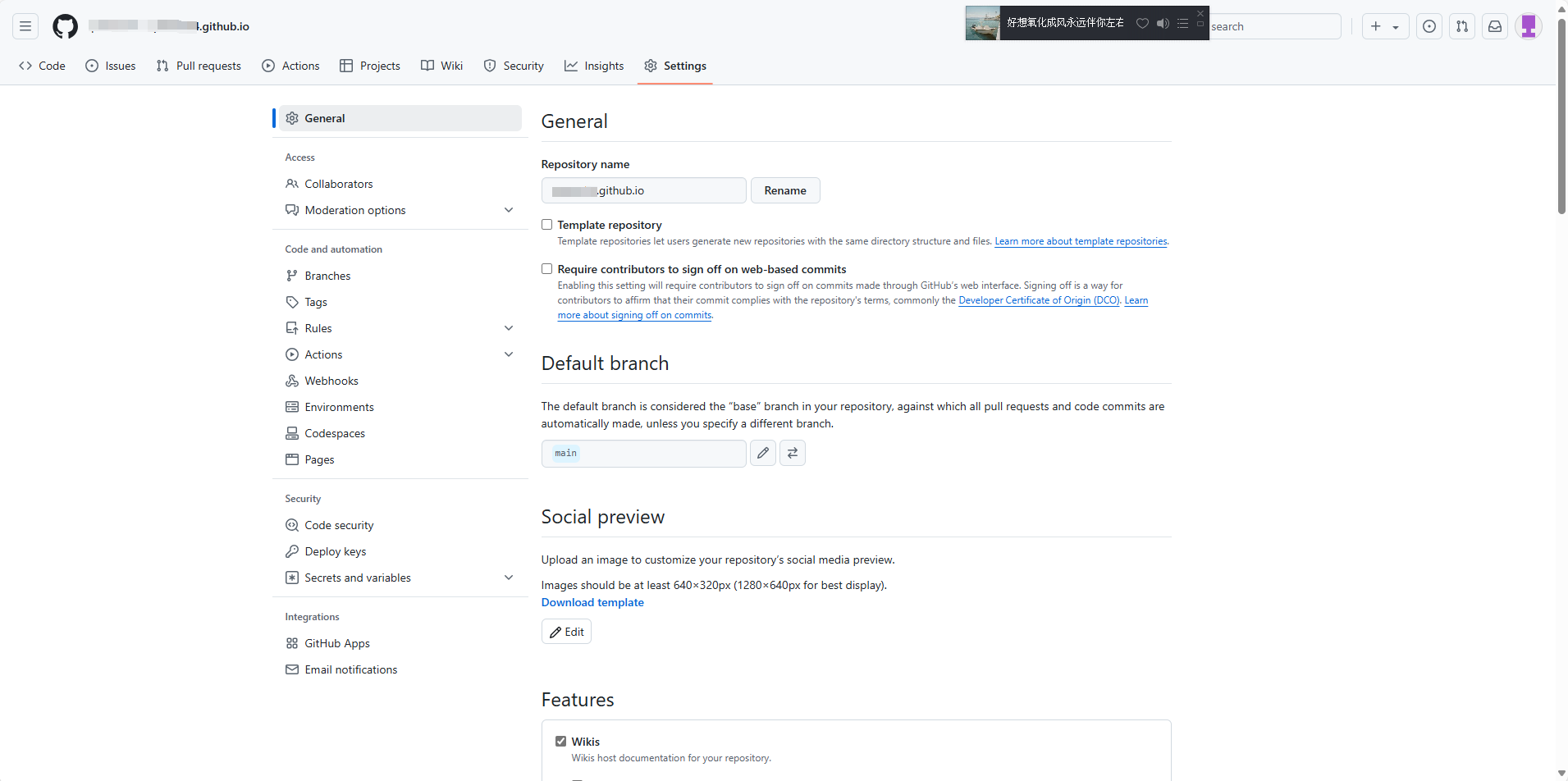
image-20241115232326223
  • 点击code

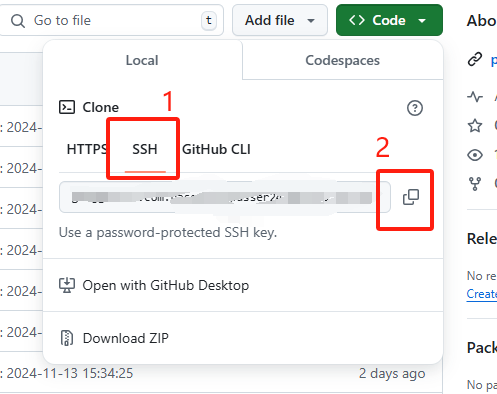
    image-20241115232527639
  • 复制SSH链接(结果测试,使用SSH更加稳定相比于HTTPS)

image-20241115232628246
  • 然后将链接放到_config.yml的Deployment下

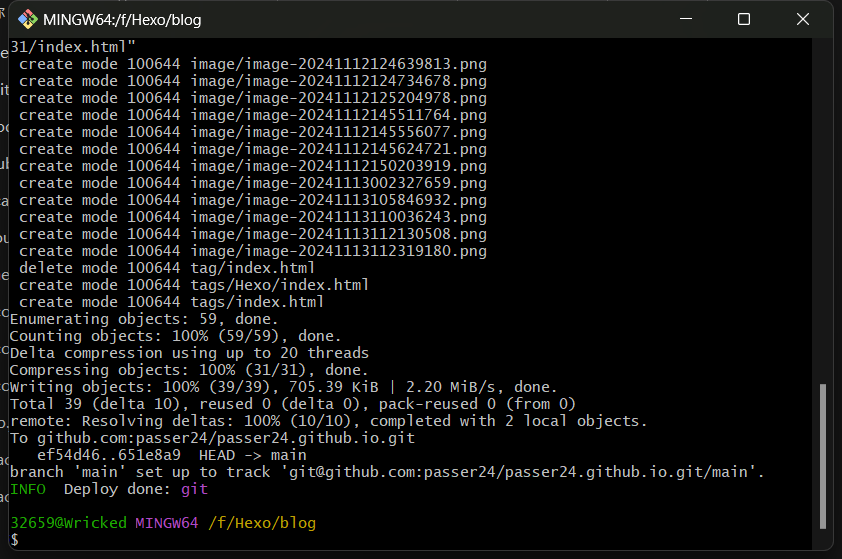
  • 在博客的文件夹下打开Git Bash,并输入hexo g -d 即可完成部署,看到如下图示,即为成功上传

    image-20241115233030690
  • 登录自己的网站也就是(github用户名).github.io,可以发现已经更新博客内容

    image-20241115233220358